Adding Calculations
Adding calculations to fact means creating new computed measure columns into fact by applying calculation formulas, aggregation rules on existing logical column in BMM Layer to meet the business requirement. These computed measures help end users to get updates such as difference between two different years’ sales, total growth, difference between units sold and units ordered, ago sales, Profit, Expenses etc.
There are three ways to add calculations to FACT or creating measures or new computed columns.
1. Using physical columns as objects in a formula.
2. Using Existing Logical Columns.
3. Using the Calculation Wizard to add calculations.
1. Using physical columns as objects in a formula.
1.1). Right click on table -> select New Object -> Logical Column -> click on General tab enter name for the new logical column.
This measure 5-01 Inventory (Sum All) is created to calculate inventory of a year/quarter/ month/day. (Inventory is defined as assets that are intended for sale, are in process of being produced for sale or are to be used in producing goods.)
1.2). Click on Column Source tab-> Select radio button for Derived from Physical Mappings->Select Check box to Show all Logical Sources.

1.3). Double click on a Logical Table Source-> In Logical table source window see the new logical column name -> Click on Column Mapping.

1.4). Click on physical table drop down to select Physical Table Source-> Select a column from Expression and check out the mapping-> Click ok.

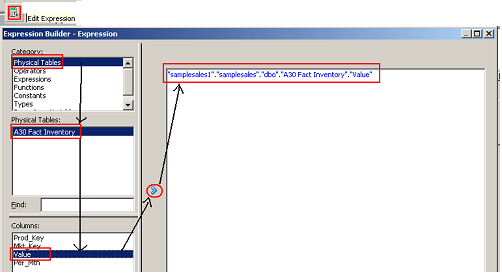
1.4). You can also create a logical column using Edit Expression button-> Click ok
1.5). Now select Aggregation Tab to apply a default Aggregation Rule.

1.6). Check out the Icon Differences and verify.

1.7). A business requirement needs to show inventory for all the months of a year like below report

1.8). Now check into OBI Answers using 5-01 Inventory (Sum All) measure how this business requirement gets satisfied.

1.9) Sql script generated by OBI Server for the requested report.

1.9) Aggregation Rule Based on Dimension Hierarchy.


1.11) Click on the Expression builder -> select and aggregate (aggregation rule) and click on the insert selected item

1.12) Select logical tables from top left pane Category->select a fact table from Logical tables pane then select a measure from bottom pan -> click on <<numExpr>> -> click insert selected item arrow key and click ok.

1.13) Check out the aggregation expression formula in Aggregation tab.

1.14) Click on green plus sign to add more formula based on logical dimension.
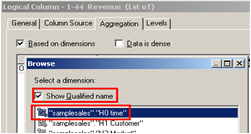

1.15) A business requirement needs to show result like below using this measure 1-44 Revenue(Lst oT All) based on dimensions for all months of a year.

1.16) Now check into OBI Answers using 1-44 Revenue(Lst oT All) measure how this business requirement gets satisfied.

1.17) Sql script generated by OBI Server for the requested report.

2. Using Existing Logical Columns.
Instance1. (1-23 Revenue (R3M Daily Avg))
This measure 1-23 Revenue (R3M Daily Avg) is created to calculate Running Daily Average Revenue of a year/quarter/ month/day.
2.1). Right click on table à select New Object -> Logical Column -> click on General tab enter name for the new logical column.
2.2). Click on Column Source tabà Select radio button for Derived from Existing Logical Column using an expressionà Click on Edit Expression button. (This column doesn’t have any column mapping from Logical table source).

2.3). Select logical column from logical table-> Divide the column from variable using Repository Variable (Enter a slash or punctuation to divide) ->multiply Repository Variable with a value, enter an asterisk and value (* 30.4) -> put the whole formula into bracket shown in below screen shot-> Click ok.
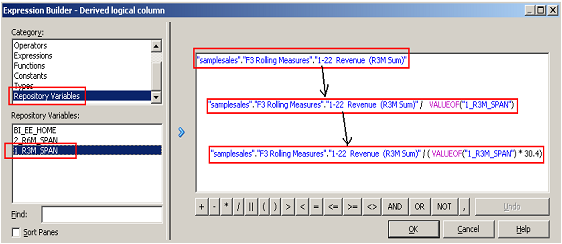
2.4). Check out the formula for new computed column, The aggregation rule property invisible for this column and default aggregation rule which is applied for its parent column previously.

2.5) A business requirement needs to show result like below using this measure 1-23 Revenue (R3M Daily Avg) based on dimensions daily basis like below

2.6) Check into OBI Answers using 1-23 Revenue (R3M Daily Avg) measure how this business requirement gets satisfied.

2.7) Sql script generated by OBI Server for the requested report.

Instance 2.
Quick Ratio: - This ratio is obtained by dividing the 'Total Assets' by 'Total Current Liabilities'. Sometimes a company could be carrying heavy inventory as part of its current assets, which might be obsolete or slow moving. Thus eliminating inventory from current assets and then doing the liquidity test is measured by this ratio. It expresses the true 'working capital' relationship of its cash, accounts receivables, prepaids and notes receivables available to meet the company's current obligations.
Follow Steps 2.2 to 2.6 to create Quick Ratio computed measure using existing logical columns.


A business requirement needs to show result like below using this measure Quick Ratio based on dimensions for all months of a year..

Check into OBI Answers using Quick Ratio measure how this business requirement gets satisfied.

Sql script generated by OBI Server for the requested report.

Instance3.
Gross Margin: - is the difference between selling price and cost. The purpose of margins is to determine the value of incremental sales, and to guide pricing and promotion decision. Gross margin is the difference between revenue (Pretax Income) and cost (Sales) before accounting for certain other costs. Generally, it is calculated as the selling price of an item, less the cost of goods sold (production or acquisition costs, essentially).
Follow Steps 2.2 to 2.6 to create Quick Ratio computed measure using existing logical columns


A business requirement needs to show result like below using this measure Gross Margin based on dimensions for all months of a year

Check out in OBI Answers using Gross Margin measure how this business requirement gets satisfied.

Sql script generated by OBI Server for the requested report.

3. Adding Calculations Using the Calculation Wizard to add calculations.
 The Calculation Wizard can create up to four calculation measures. The wizard also prompts you to specify what value should be returned if the column has no value (like null). This must be specified for all selected calculations. Select each calculation and specify what value should be returned. You can enter any numeric value or NULL but don’t enter a value that would change the data type. You can also change the calculation name at this point which appears in the business model when the Calculation Wizard finishes.
3.1). Select a logical column ->Right-click and select Calculation Wizard.

3.2). In the first introduction screen click on next button

3.3). Select a Fact table and a column to compare with the previously selected column {1-01 Revenue (Sum All)} for calculation -> Click next.

3.4). In new calculation window, Go to Generate New Calculations-> Select Change and Percentage Change (If they are not appearing by default selected). -> Change the calculation name as you wish->Click Next.

3.5). In the next screen it will show a message that calculation wizard will create following calculations-> Click on the Finish button to create two new calculated columns

3.6). Check out the new computed column created using calculation wizard automatically.

A business requirement needs to show result like below using this measure Chg 2-01 Billed Qty(Sum All) and %Chg-01 Billed Qty(Sum All) based on dimensions for all months of a year.

Check out in OBI Answers using Gross Margin measure how this business requirement gets satisfied

Sql script generated by OBI Server for the requested report.